
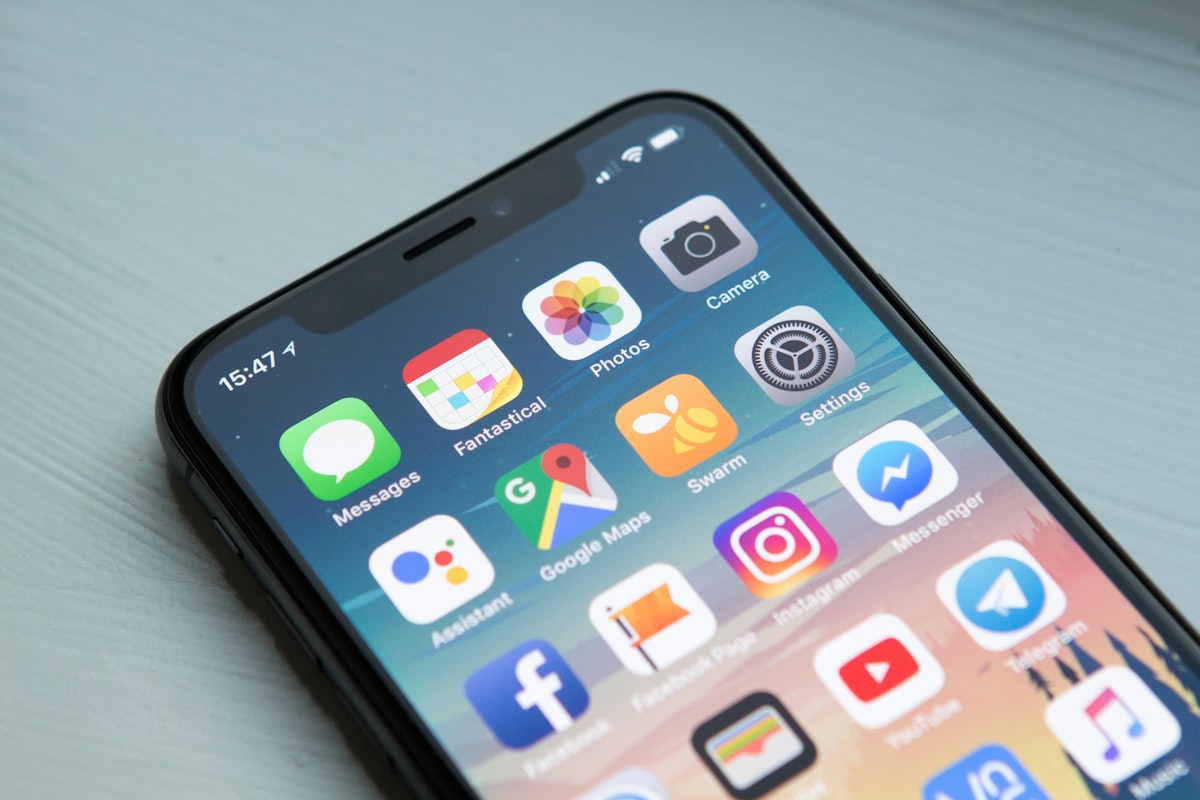
Mobile-First Signing: Optimizing E-Signatures for Smartphones
67% of documents are now signed on mobile devices. Learn UX best practices, touch optimization, and accessibility considerations for mobile signing.
Jordan Lee
UX Designer
Mobile-First Signing: Optimizing E-Signatures for Smartphones
In 2026, more than 67% of e-signature transactions happen on mobile devices. Yet many e-signature platforms still treat mobile as an afterthought. Here's how to design signing experiences that work beautifully on smartphones.
The Mobile Signing Revolution
Why Mobile Matters
Usage Statistics (2026):
User Expectations:
Common Mobile Signing Pain Points
1. Tiny Touch Targets
Signature fields designed for mouse clicks are frustrating on mobile.
2. Pinch-and-Zoom Required
Documents not optimized for mobile screens force awkward zooming.
3. Slow Loading
Heavy PDFs over cellular networks cause abandonment.
4. Poor Form Design
Desktop-style forms are unusable on small screens.
5. No Offline Support
Lost connection = lost signature.
Mobile-First Design Principles
1. Touch-Optimized Interface
Minimum Touch Target Sizes:
Best Practices:
Touch Gesture Support:
2. Responsive Document Viewing
Mobile-Optimized PDF Display:
Instead of showing full PDF pages that require zooming, consider these approaches:
Option A: Adaptive Scaling
Option B: Field-by-Field Wizard
Benefits of Wizard Approach:
3. Performance Optimization
Lazy Loading:
Image Optimization:
Code Splitting:
4. Offline Support
Progressive Web App (PWA) Features:
Background Sync:
5. Biometric Authentication
Modern Mobile Authentication:
Face ID / Touch ID Integration:
Benefits:
Mobile Signature Methods
1. Draw Signature
Best for:
Implementation Tips:
2. Type Signature
Best for:
Implementation Tips:
3. Upload Signature
Best for:
Implementation Tips:
4. Saved Signature
Best for:
Implementation Tips:
Mobile Form Filling Best Practices
Input Field Optimization
Text Inputs:
Date Pickers:
Dropdowns:
Checkboxes:
Form Layout
Single Column:
Progressive Disclosure:
Smart Defaults:
Navigation Patterns
1. Bottom Navigation Bar
Best for: Multi-page documents
Elements:
2. Sticky Action Button
Best for: Long documents
Features:
3. Field Navigation
Best for: Complex forms
Features:
Error Handling on Mobile
Validation Messages
Do:
Don't:
Network Errors
Strategies:
Permission Errors
Camera/Storage Access:
Testing Mobile Signing Flows
Device Testing Matrix
Minimum Test Coverage:
Screen Sizes:
Connection Testing
Network Conditions:
Usability Metrics
Track:
Accessibility Considerations
Screen Reader Support
Ensure:
Motor Accessibility
Features:
Visual Accessibility
Requirements:
Performance Benchmarks
Target Metrics
Initial Load:
Interactions:
3G Performance:
Conclusion
Mobile-first signing isn't optional—it's essential. By following these best practices:
✅ Touch optimization makes signing effortless
✅ Responsive design works on all screen sizes
✅ Performance optimization ensures fast loading
✅ Offline support enables signing anywhere
✅ Smart UX patterns reduce friction
The result? Higher completion rates, happier users, and more successful transactions.
Key Takeaway: Design for mobile first, then enhance for desktop—not the other way around.
*See mobile signing in action: Try Space Sign on your phone or explore our mobile SDK.*
Ready to Try Space Sign?
Experience the power of enterprise-grade, AI-powered e-signatures.
Read Next
Continue exploring related topics
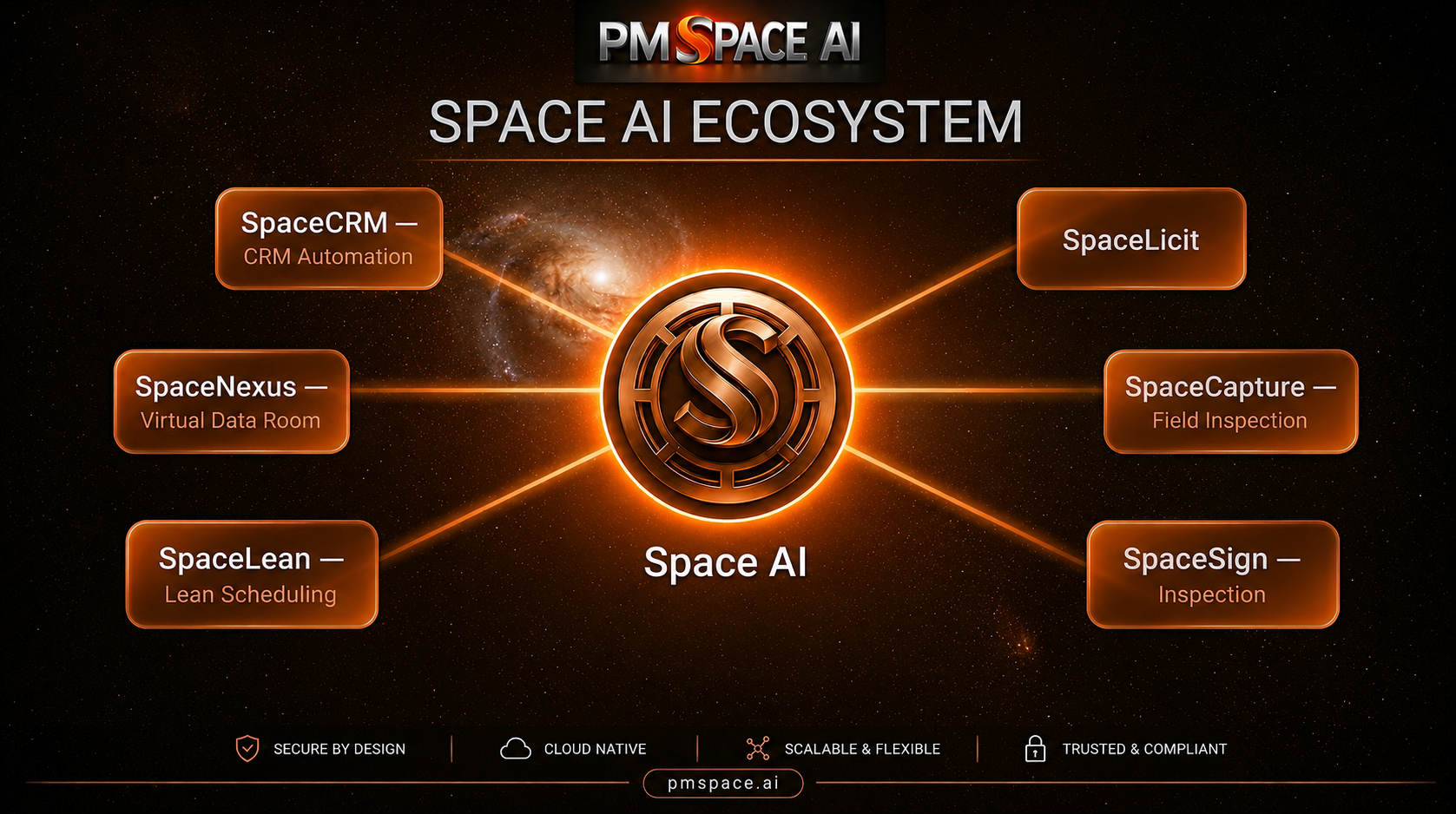
Beyond Construction Intelligence: The Ecosystem Powering the Future of Construction Management
Explore how the SPACE AI ecosystem connects planning, execution, workforce management, customer engagement, and business intelligence through AI.

Why Open Source E-Signatures Matter Security | SpaceSign
Discover why leading enterprises are choosing open-source e-signature platforms over proprietary solutions. Learn about transparency, auditability, and true data sovereignty.
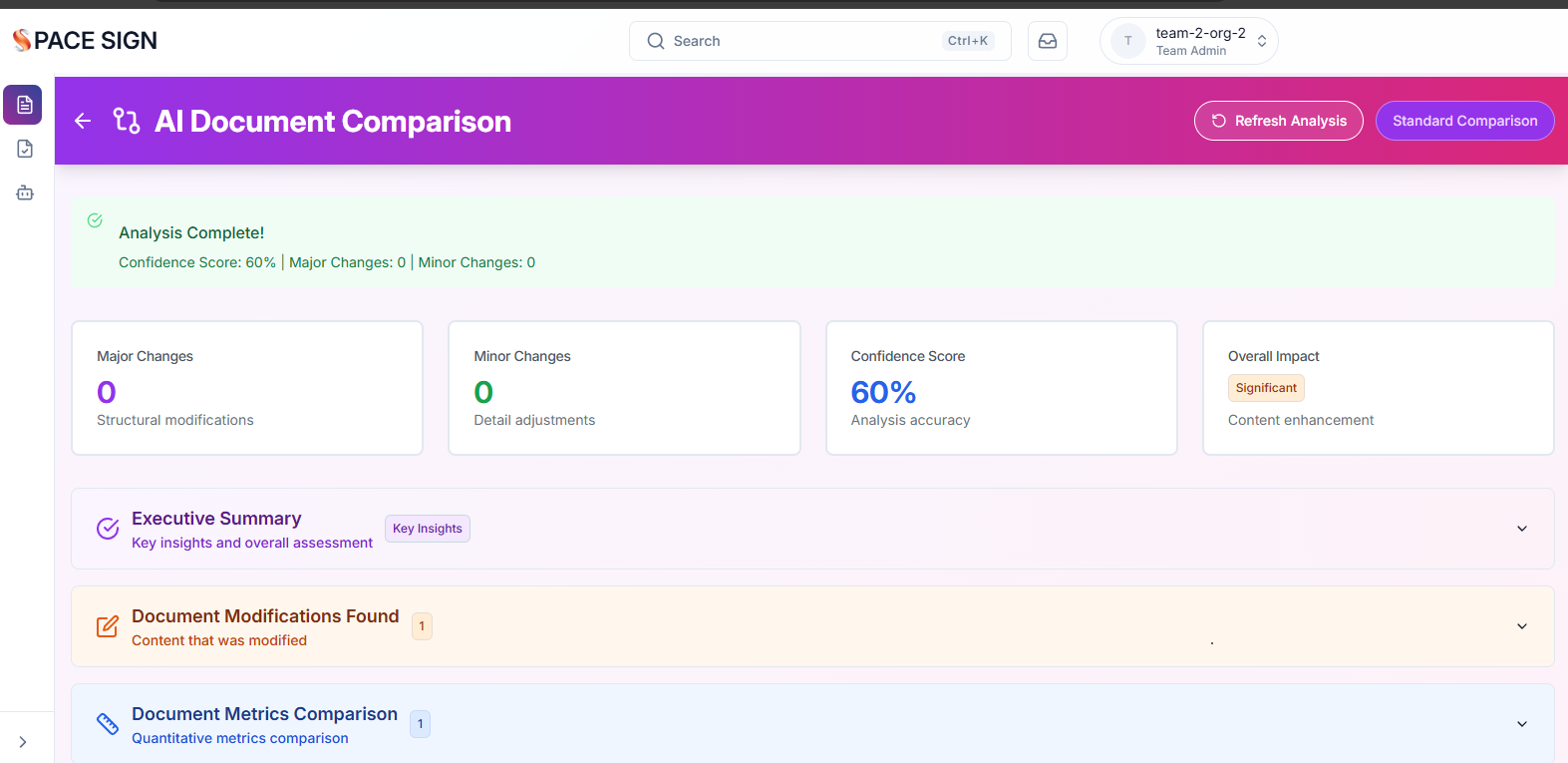
How AI Document Analysis is Revolutionizing Contract Review
AI-powered document analysis can review contracts in seconds, not hours. Learn how Space Sign's AI identifies risks, extracts key clauses, and suggests improvements automatically.